Orders Page – Operations Section
System: Biddano Supply Chain Management System
Audience: Internal Teams (Operations, Supply Chain, Finance, and Support)
Last Updated: October 2025
🧭 Navigation Path
Home → Operations → Orders
This section is the control center for all pharmacy orders.
It allows internal teams to monitor, verify, and manage every stage of the order journey.
🖥️ Page Overview
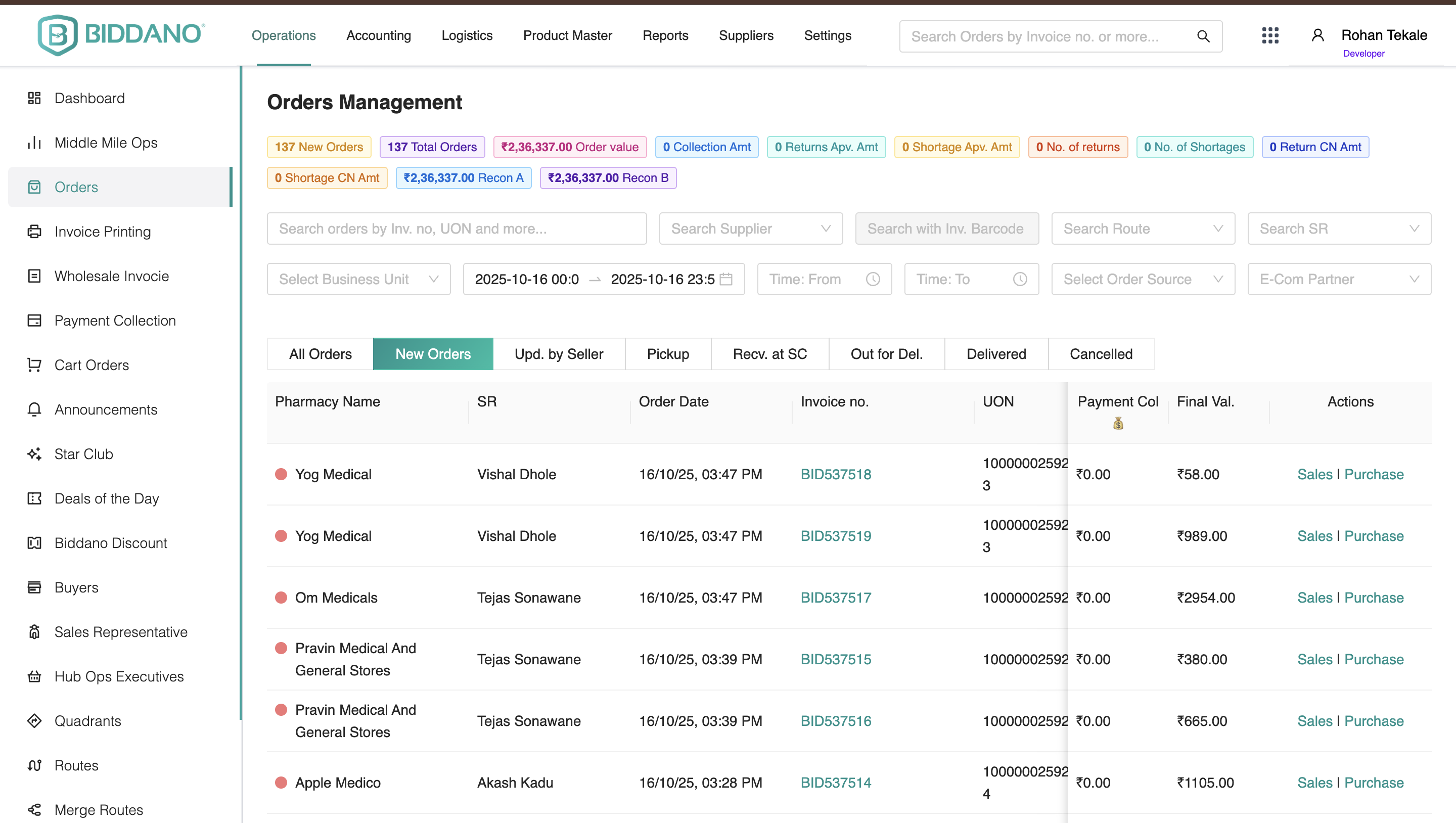
When you open the Orders Page, you’ll see three main sections:
- Header Overview Cards (KPI Summary)
- Filters and Search Bar
- Orders Table (Main Order List)
1️⃣ Header Overview Cards
These cards provide an at-a-glance summary of the system’s live operational metrics.
| Card Name | Description |
|---|---|
| New Orders | Count of newly placed orders. |
| Total Orders | All orders across statuses. |
| Total Order Value | Combined value of all orders. |
| Collection Amount | Amount collected from pharmacies. |
| Return Approved Amount | Value of approved returns. |
| Shortage Approved Amount | Value of approved shortages. |
| Return CN Amount | Credit notes generated for returns. |
| Shortage CN Amount | Credit notes generated for shortages. |
| Recon A / Recon B Amounts | Financial reconciliation totals. |
💡 Tip: Hover over any card to see tooltips or filter related data (if enabled).
2️⃣ Search and Filter Section
The Search and Filter bar allows quick access to any order.
🔍 Search Options
You can search by:
- Invoice Number
- UON Number
- Pharmacy Name
- Supplier Name
- Sales Representative
🧰 Filters Available
You can apply filters based on:
- Supplier
- Route
- Sales Representative
- Business Unit
- Date & Time Range
- Order Source
- E-commerce Partner
🪜 Steps to Filter Orders
- Click on the Filter icon beside the search bar.
- Select desired filters (e.g., Supplier → Alkem).
- Set a date/time range.
- Click Apply Filters.
- Table updates automatically.
To reset all filters, click Clear Filters.
3️⃣ Orders Table (Main Order List)
This is the central workspace where filtered orders are displayed.
| Column | Description |
|---|---|
| Invoice No | Clickable link to open the Order Summary. |
| UON No | Unique internal order number. |
| Pharmacy Name | Buyer pharmacy name. |
| Sales Representative | Assigned Biddano representative. |
| Supplier Name | Distributor fulfilling the order. |
| Route Name | Delivery route. |
| Order Source | Origin of the order (App/Web/Manual). |
| Order Date & Time | Timestamp of order creation. |
| Payment Collected | Amount already collected. |
| Final Order Value | Final payable amount. |
| Actions | View Sales/Purchase Invoices. |
📘 Order Status Tabs
Located above the table:
- All Orders
- New Orders
- Uploaded by Seller
- For Pickup
- Received at Short Center
- Out for Delivery
- Delivered
- Cancelled
4️⃣ Order Summary Page
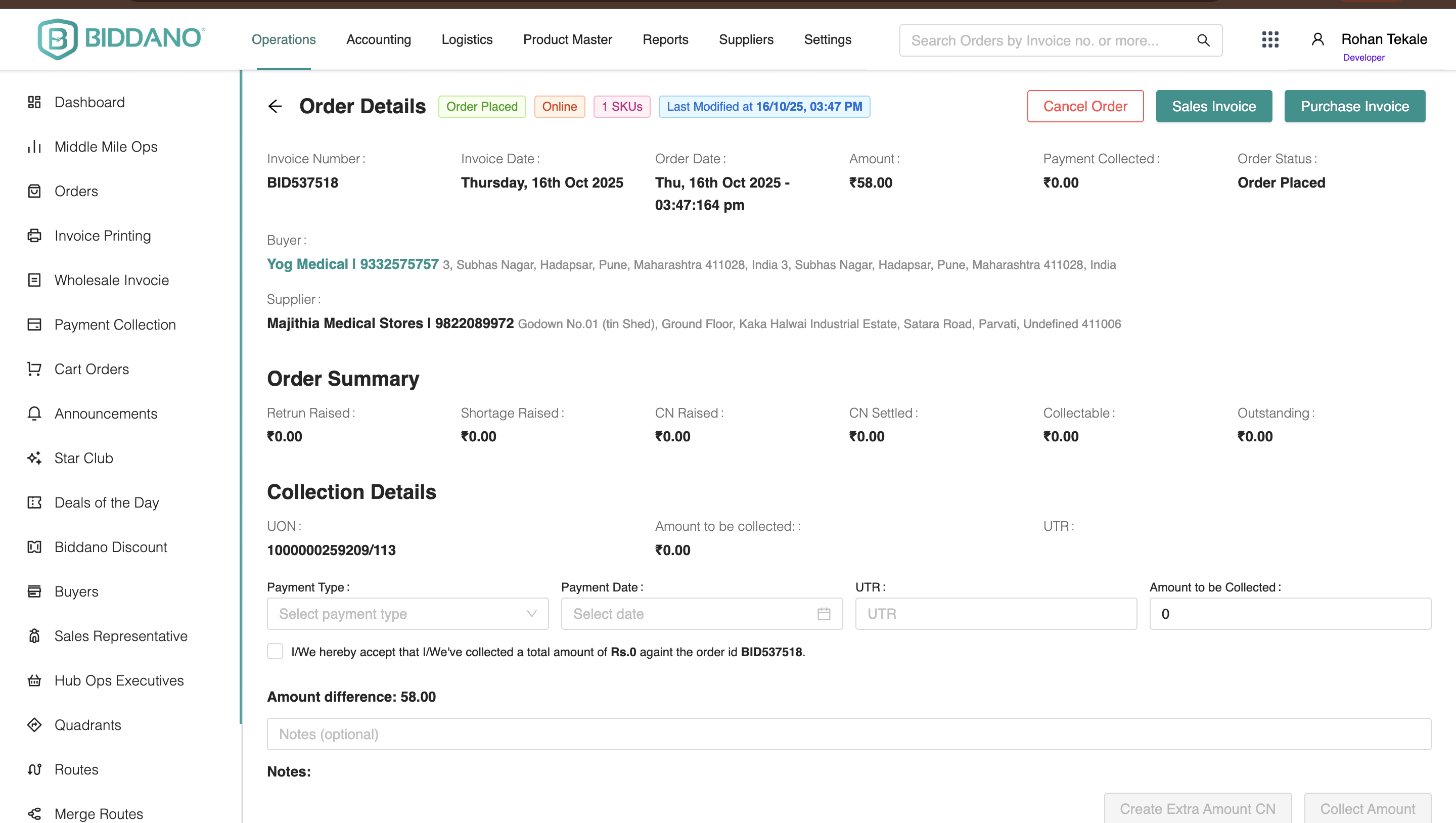
Clicking on Invoice No opens the Order Summary Page.
This provides complete visibility of order, payment, and related records.
🧾 Order Header Details
- Invoice Number
- Invoice Date
- Order Date & Time
- Last Modified Date
- Total SKUs
- Order Status
👤 Party Information
- Buyer (Pharmacy)
- Supplier (Distributor)
- Sales Representative
- Route
🔁 Tabs Under Order Summary
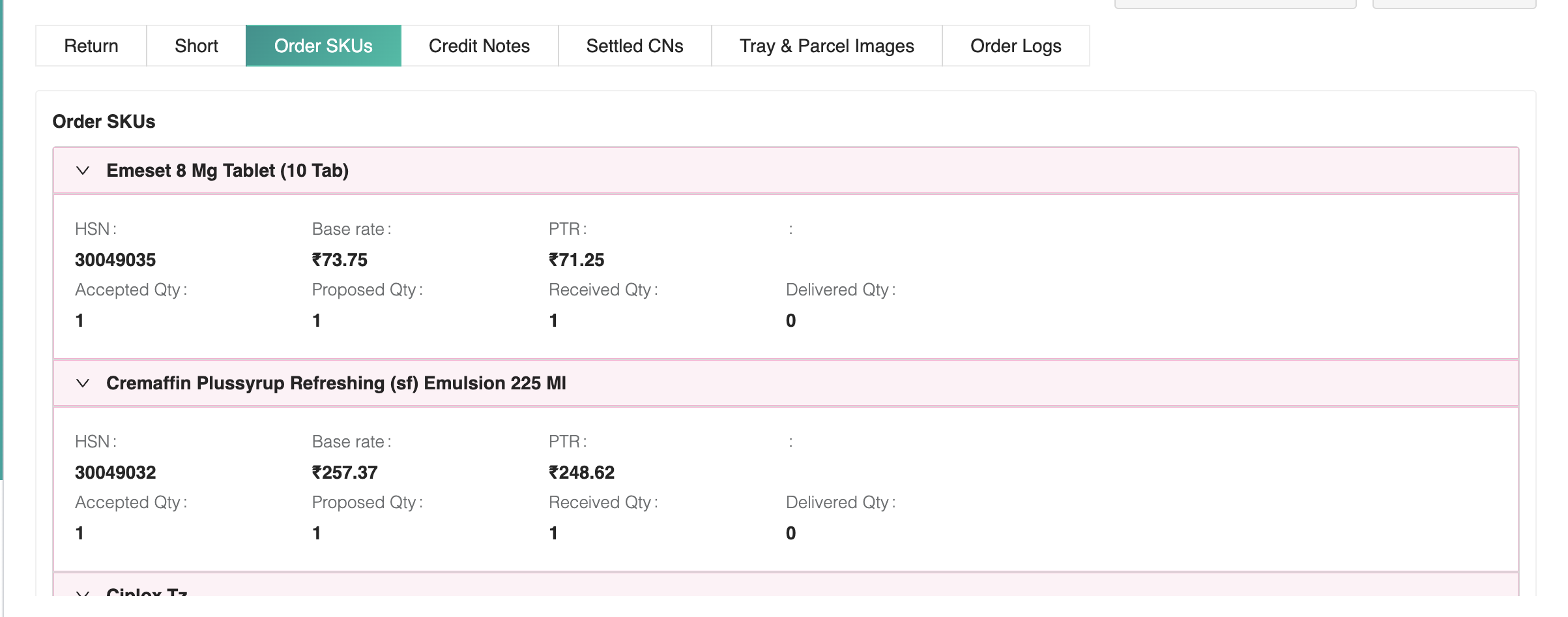
| Tab | Purpose |
|---|---|
| Return | Manage and review return orders. |
| Shortage | Track shortage reports. |
| Order SKUs | List of all items in the order. |
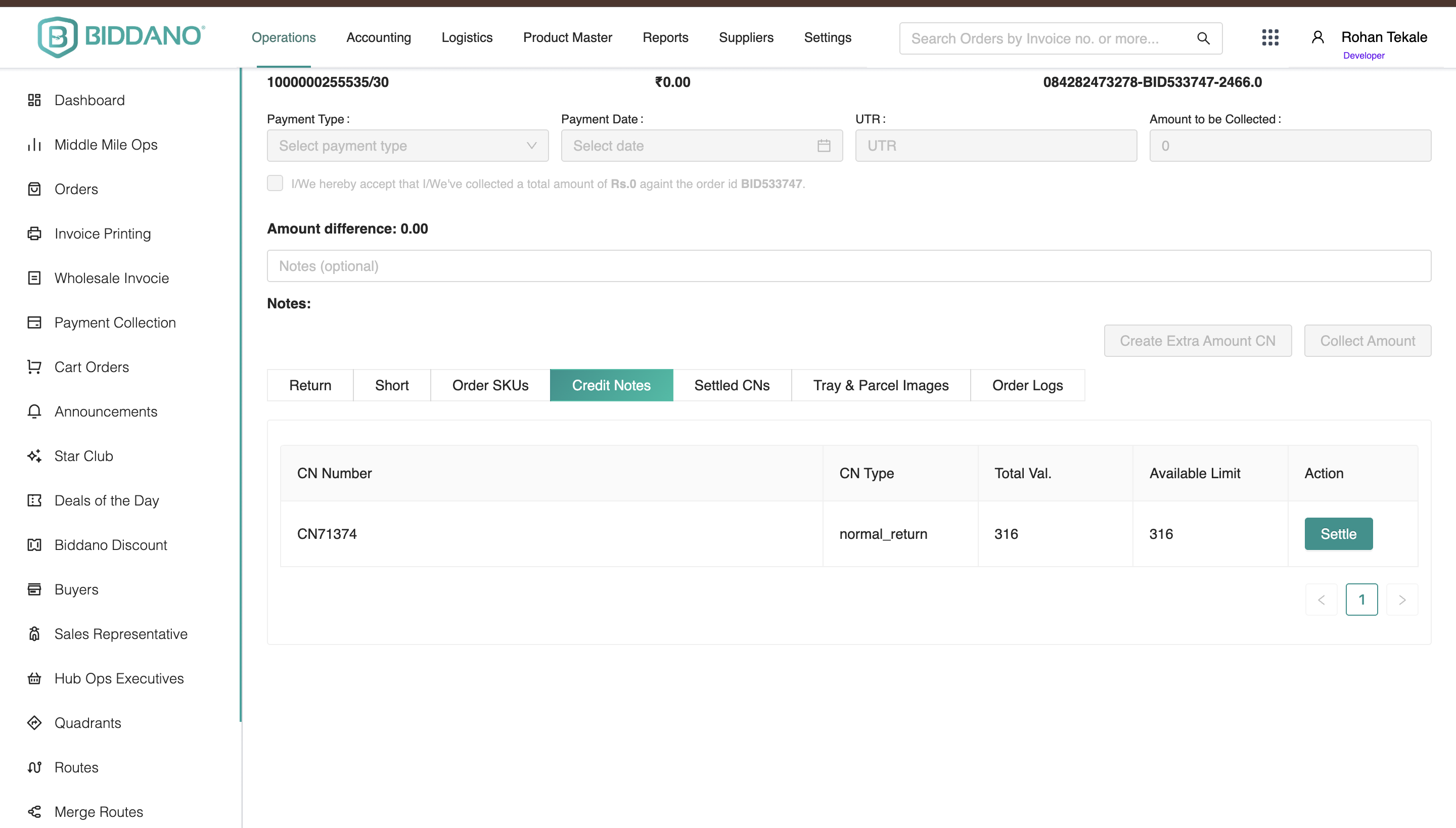
| Credit Notes | Credit notes linked to the order. |
| Settled CNs | Previously settled notes. |
| Tray & Parcel Images | Uploaded images for delivery proof. |
| Order Logs | Audit history of actions and changes. |
💰 Financial Summary
| Field | Description |
|---|---|
| Total Order Amount | Pre-discount total. |
| Payment Collected | Amount received. |
| Return Raised Amount | Value of returns raised. |
| Shortage Raised Amount | Value of shortages reported. |
| Credit Note Raised | Total CNs issued. |
| Credit Note Settled | CNs settled successfully. |
| Collectable Amount | Pending collection value. |
| Outstanding Amount | Overdue/uncollected value. |
💳 Collection Details
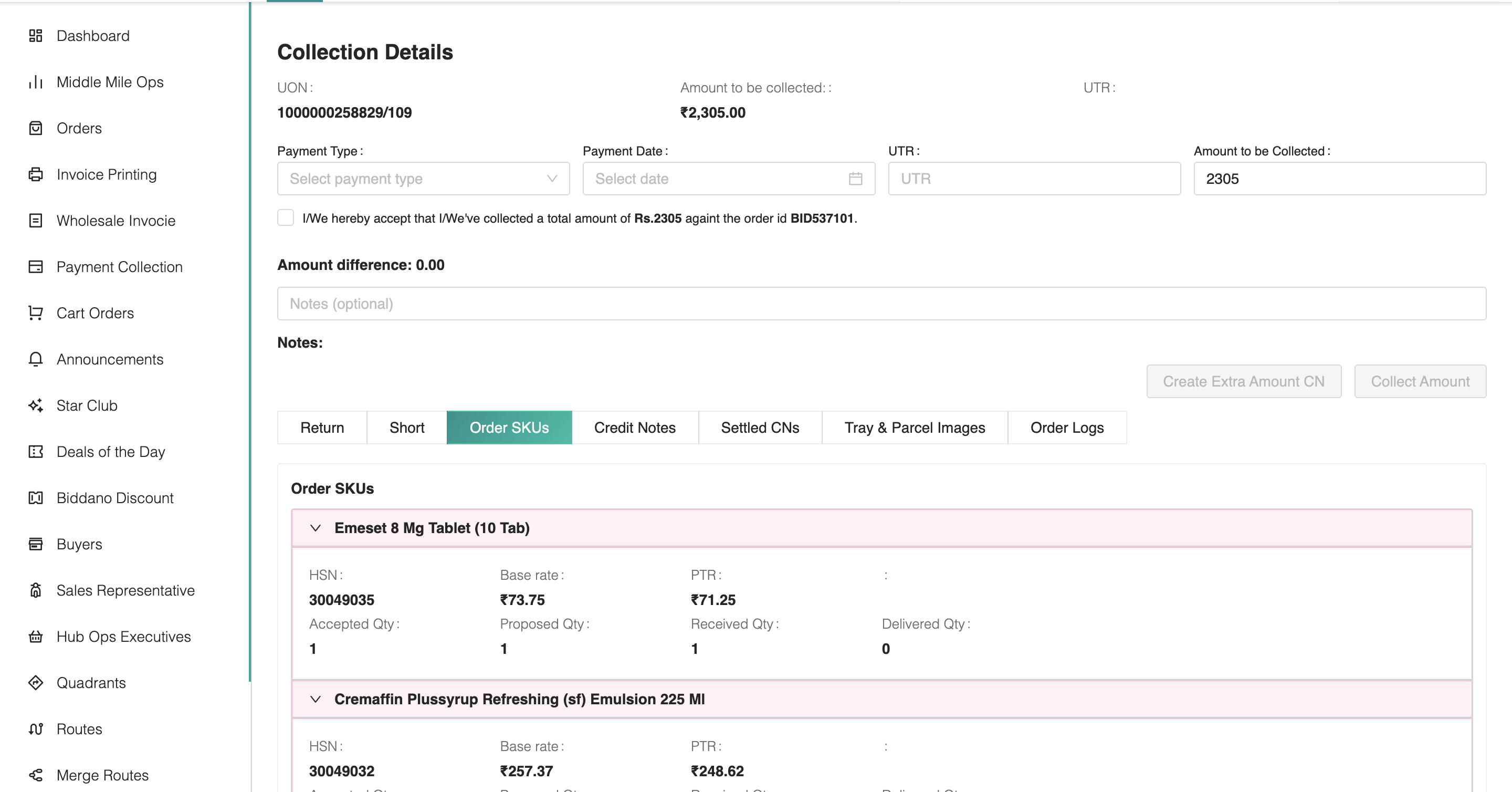
| Field | Description |
|---|---|
| UON No | Unique collection identifier. |
| Amount to be Collected | Payment due for the order. |
| Payment Type | e.g., Cash / NEFT / RTGS / Pay at Delivery. |
| Payment Date | When payment was made. |
| UTR No | Transaction reference number. |
| Consent Checkbox | Tick to confirm receipt. |
| Notes | Optional remarks. |
✅ Steps to Confirm Collection
- Open Order Summary.
- Check UON No and Amount.
- Tick Consent Checkbox to confirm.
- Add any Notes if required.
- Click Save / Confirm Collection.
🔄 Return Order Management
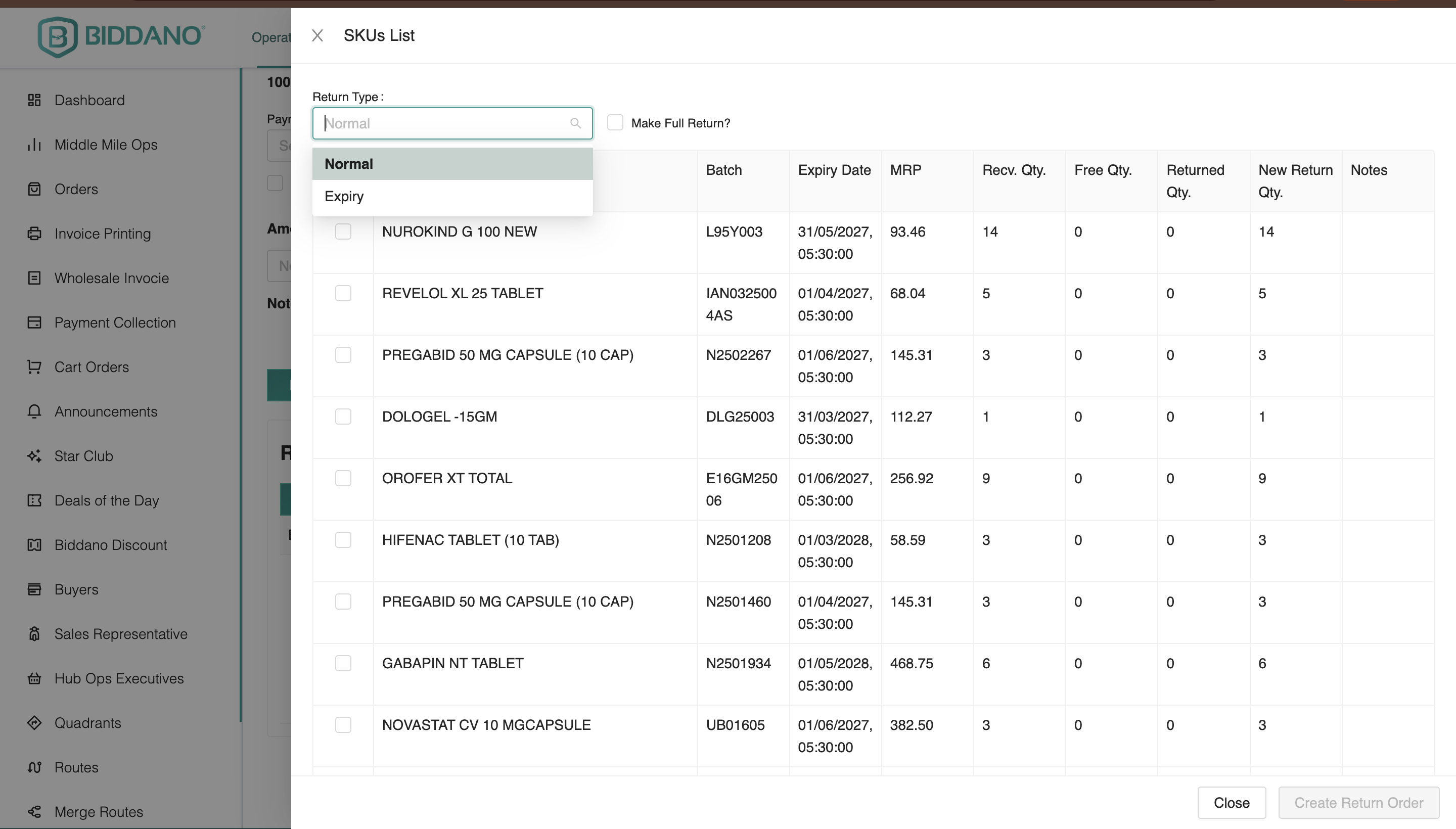
🪜 Steps to Create Return Order
- Go to the Return Tab inside the order summary.
- Click Create Return Order (on the right side).
- Choose the return type:
- Normal Return → For general product returns
- Expiry Return → For expired products only
- Optionally, click Make Full Return to return all SKUs.
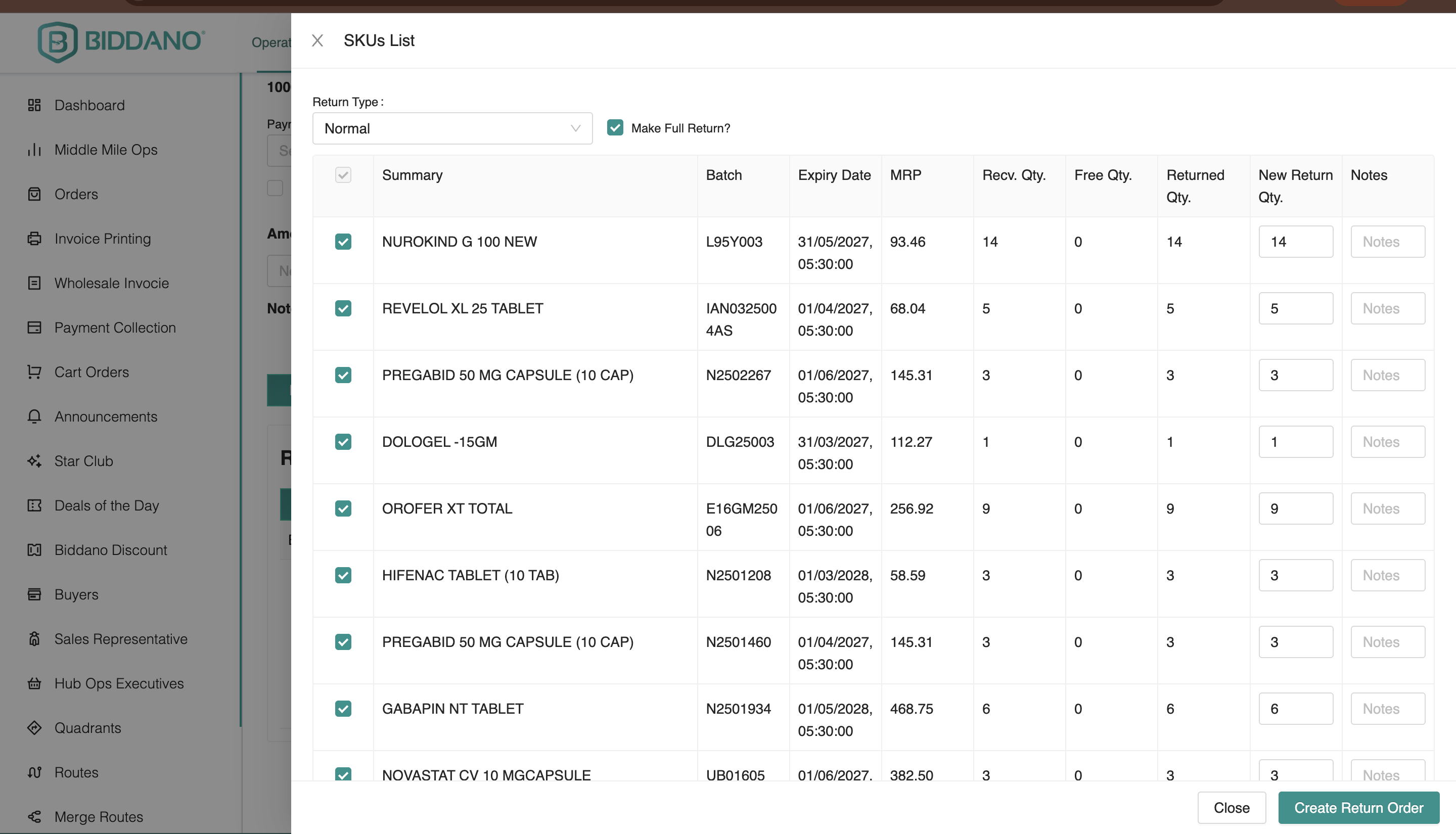
- Or manually select SKUs and enter return quantities.
- Click Submit Return Order to complete the process.
⚙️ Return Approval Workflow
- Once created, the return order appears under the Raised Tab.
- The Return Manager (Primary/Secondary) reviews the return.
- Upon approval, the order moves to the Resolved stage.
- The system automatically generates:
- Credit Note (Buyer)
- Debit Note (Supplier)
You can view all generated notes under the Credit Notes Tab.
📦 Short Return (for Short Quantity Products)
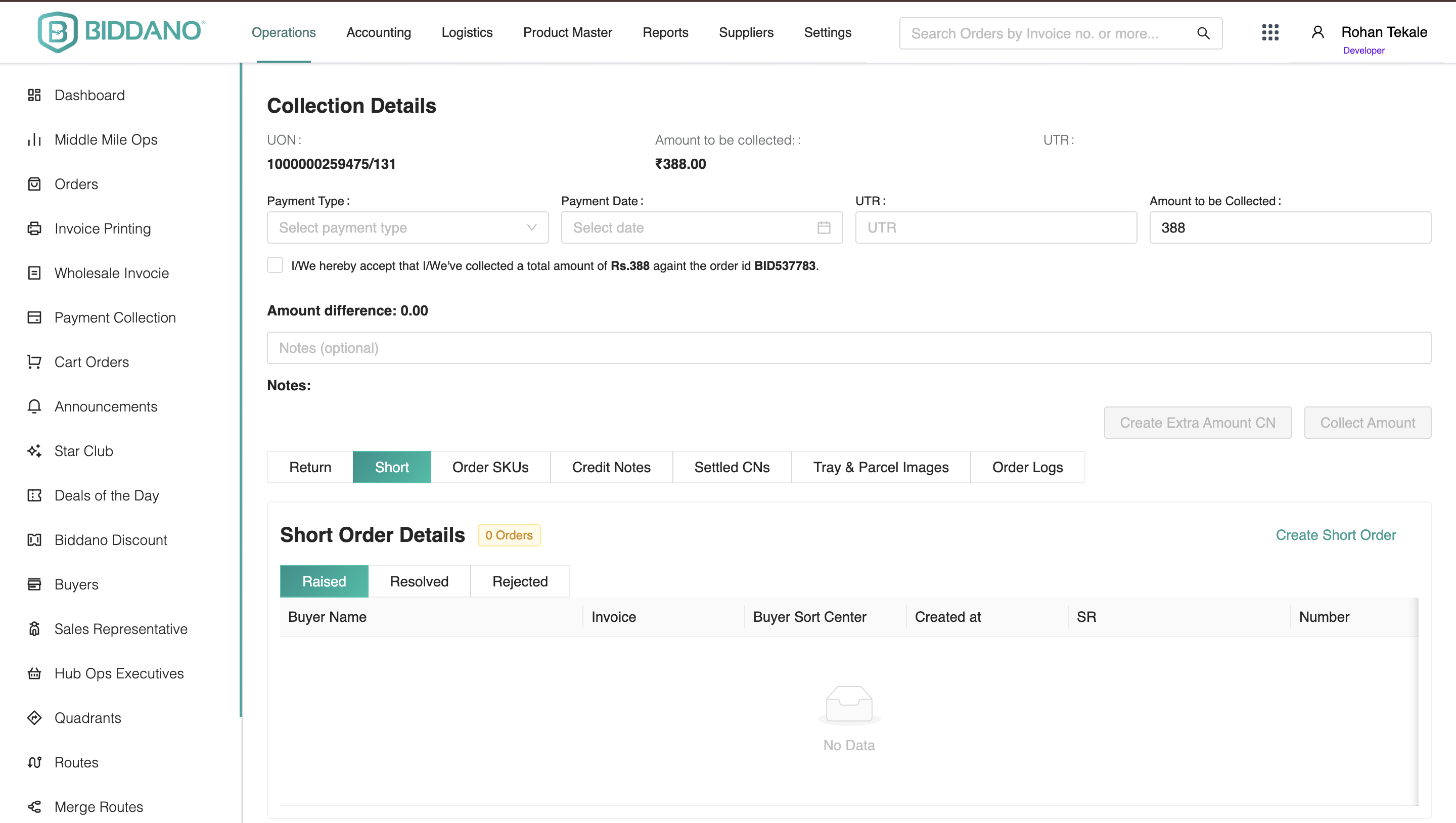 📦 Short Return process
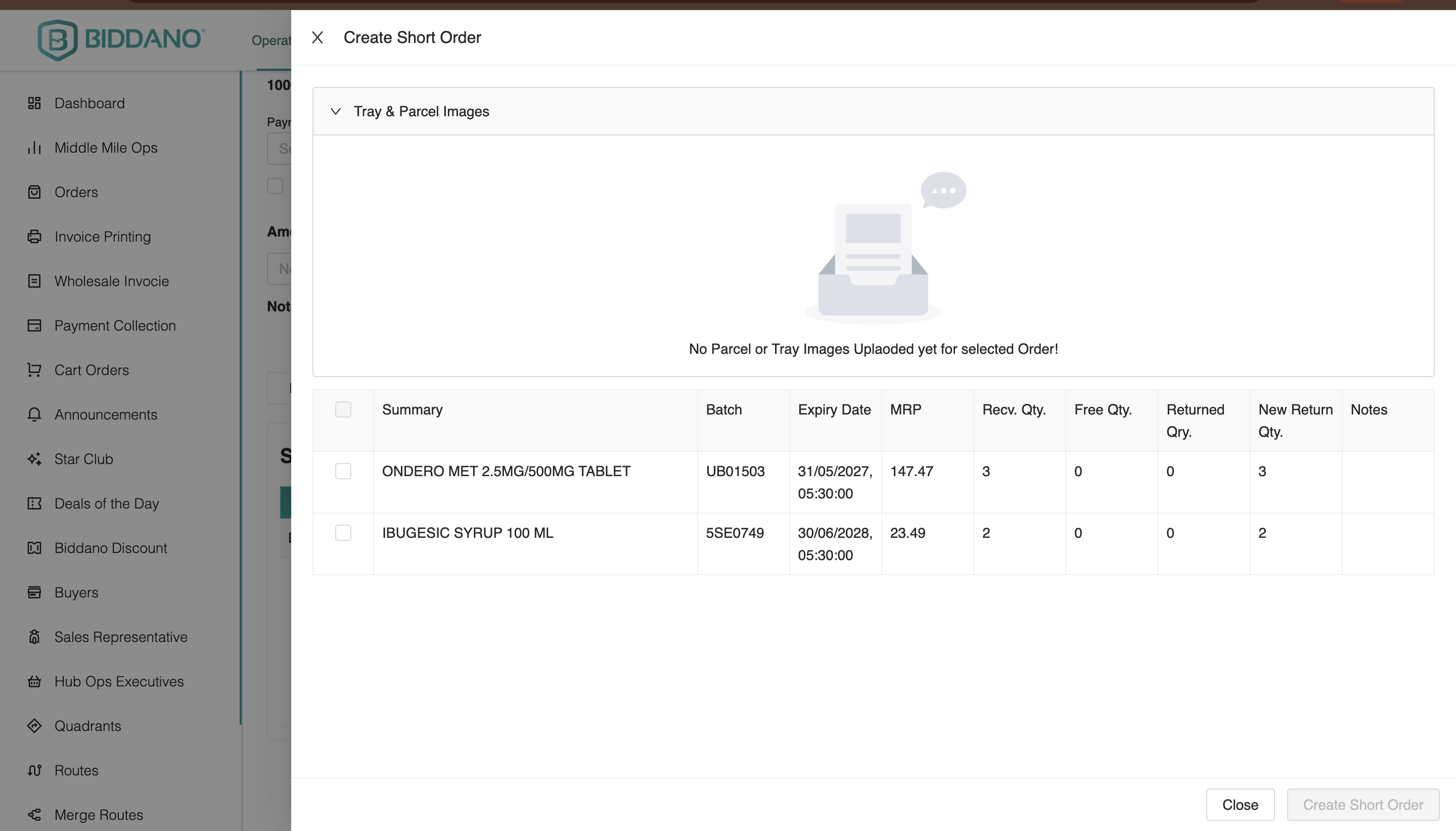
- Next to the Return Tab, you’ll find a Short Return Tab.
- Use this option to create a Short Return Order for products received in short quantity.
- Click Create Short Return Order, update the return quantity as per the short quantity received, and submit the order.
- The created Short Return Order will appear in the Raised Tab.
- The respective Return Manager will then review, resolve, and approve it following the same workflow as normal returns.
✅ Tip: Keep track of both Normal and Short Return Orders from their respective tabs for a smooth return management process.
📊 Order Lifecycle Flow
Order Placed
   ↓
Uploaded by Seller
   ↓
Picked Up
   ↓
Received at Short Center
   ↓
Out for Delivery
   ↓
Delivered
   ↓
(Return / Shortage if any)
   ↓
Approved → Resolved
   ↓
Credit Note (Buyer) / Debit Note (Supplier)
   ↓
Collection & Reconciliation (Recon A / B)